

Dashboard
The home page adapts to where you are — a sample API and a getting-started checklist when you sign up, an operational view of the changes you depend on once you're connected.
The Spec0 home page at spec0.io isn't a fixed wall of widgets. It detects where your org and you are when it loads and shows one layout for that moment — an activation flow when you're new, an operational view once you're set up. You never see a blank account, and you're never shown every panel at once.
You start with something to explore
Every new organisation is created with a sample Pet Store API already in it, in a system team called Sample APIs. It's a normal API, not a screenshot — it renders in the reference viewer, has a governance result, and is queryable from an MCP-connected agent. Use it to see what the platform does before you commit your own spec.
The sample is just an API — you can delete it like any other, and it doesn't count toward your real APIs. Your own APIs can arrive three ways: upload an OpenAPI file in the dashboard, import one from a GitHub repository, or push from the CLI.
First: name your organisation
The very first time you sign in, Spec0 asks you to name your organisation before the dashboard opens — so you never land on a placeholder "My Organization". You can invite teammates in the same step (optional), then you're dropped onto the home page. New accounts get a real organisation of their own; if you were invited to an existing org, accepting the invite puts you there instead.
Getting started: the checklist
Before you've connected anything, the home page is an activation checklist. Each item is ticked from a real signal, not a box you check yourself — so it always reflects reality and disappears once you're done:
| Step | Done when |
|---|---|
| Register your first API | Your org has a real (non-sample) API — upload it, import it from GitHub, or push from the CLI. See Getting started. |
| Connect your AI provider | You've added an AI provider key (BYOK). |
| Wire up the MCP server | Your agent has made an authenticated call — see Agents. |
| Invite teammates (optional) | Your org has invited at least one member. |
| Set an org ruleset (optional) | Your org has a Spectral ruleset. |
The primary action is registering your own API — uploading a spec, importing from GitHub, or copying the CLI command, all offered together at the top of the page. Exploring the sample is a quiet link below: it's useful for a look around, but it doesn't move your org forward.
Each checklist row links straight to the page that completes it, and you can dismiss the checklist once you no longer want it.
Your inbox opens with a guide
A new account's inbox starts with a short welcome that lists what's left to do, drawn from the same signals as the checklist — so the two never disagree. It stays until you mark it read.
Connecting an agent
The home page carries a connect card until your agent has actually reached the MCP server, with the command for the client you use:
claude mcp add --transport http spec0 <your MCP server URL>   # Claude Code — no Spec0 CLI needed
npx @spec0/cli setup                                          # or: auth, MCP server, and the Claude skill in one step
Claude Desktop has no equivalent command, so the card offers the JSON config block instead.
Adding the server is not the same as being signed in to it — your client runs an OAuth browser sign-in on first use. The card's status reflects that: it reads Connected only once an authenticated call has actually arrived, so it confirms both steps rather than just the paste. See Agents & MCP.
The operational view
When you're connected — MCP and CLI both active — the home page settles into a quiet operational dashboard.
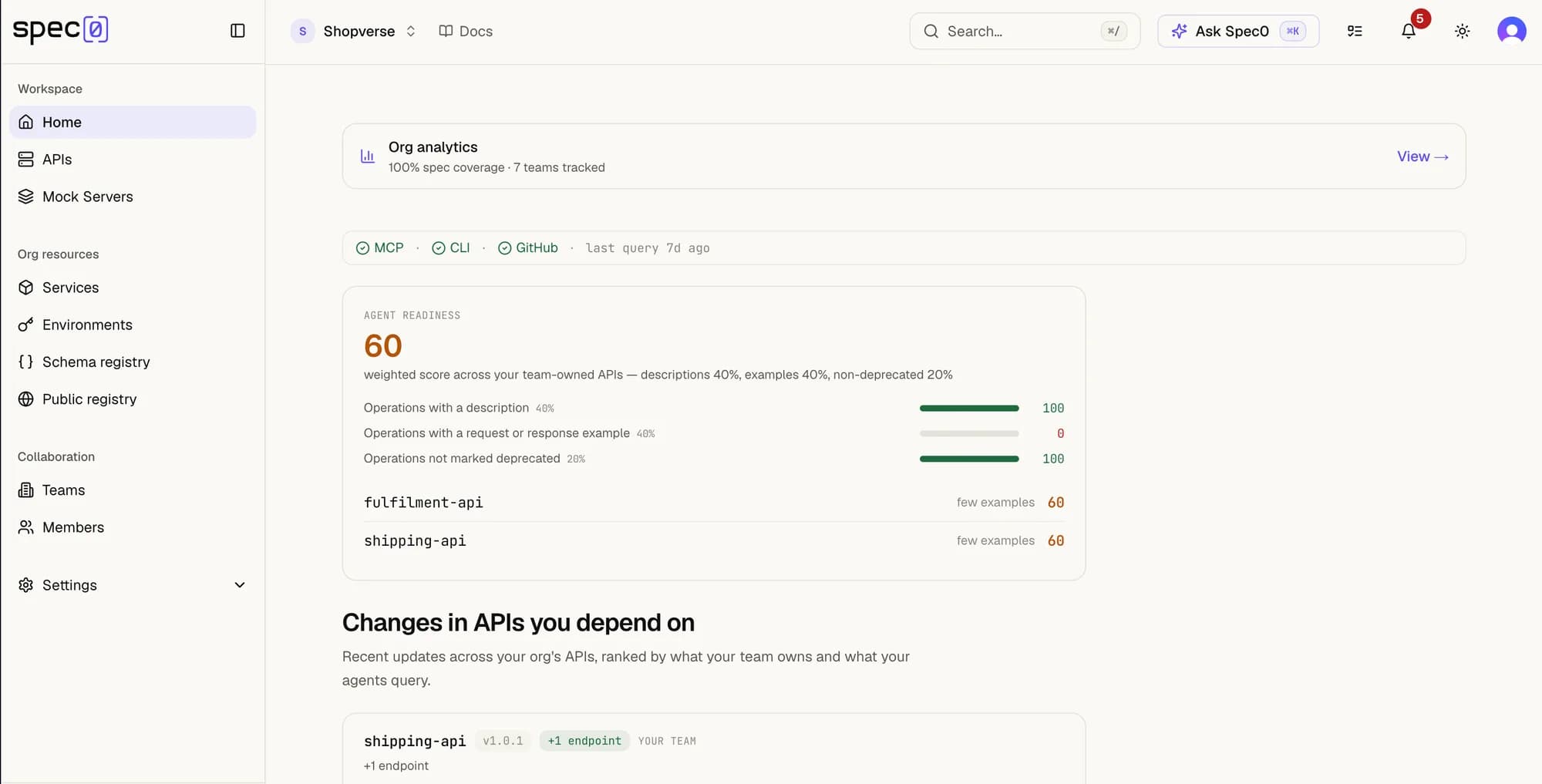
Changes in APIs you depend on
The core of the page: a feed of recent changes across your org's APIs, so you catch a breaking change before it breaks a build. Each entry shows the API, the new version, a change-type badge (breaking, +N endpoints, or non-breaking), a one-line diff summary, and — for APIs your agents actually query — how many times you queried it this month. The feed is ranked by what your team owns and what you query. The same change data drives the inbox and notifications; see Versioning for how the diffs and breaking-change detection work.
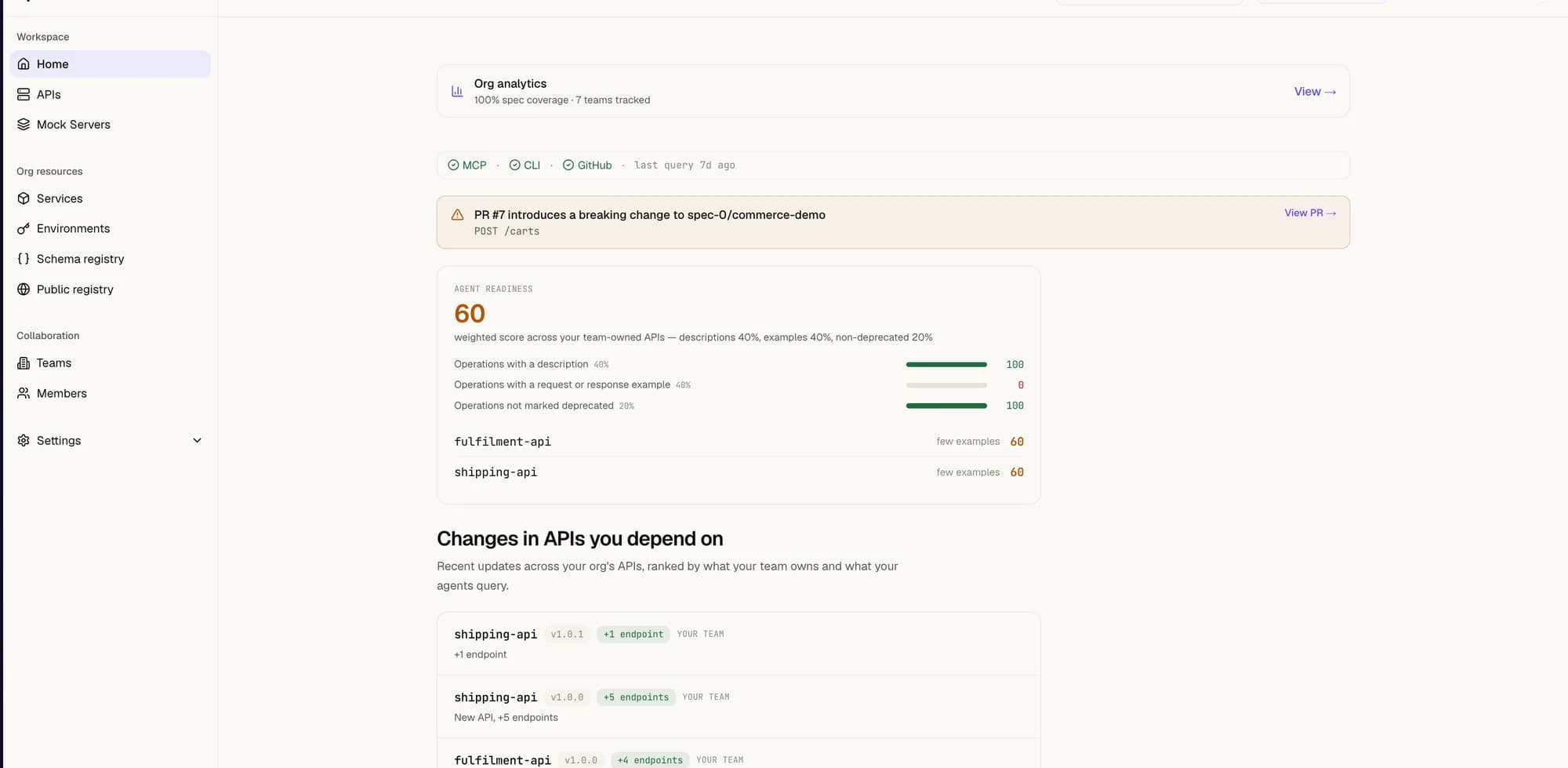
Governance score
The share of your org's real APIs whose latest spec passes your org ruleset with zero errors, with a link to the ones that don't. A quality number you can watch move, not buried config.
Saved this month
A small estimate of the tokens (and the rough cost) you avoided by having your agents query specs over MCP instead of pasting full specs into prompts. It's deliberately approximate — reinforcement, not accounting — and stays quiet until there's a real number.
Org mesh
Below the fold: a link into the org mesh — which teams own which APIs, and who holds grants on them. See Teams and Grants.
Org analytics
Home → Org analytics rolls the same signals up across the whole organisation rather than your team's slice — spec coverage, per-team governance, breaking changes merged recently, and agent adoption.
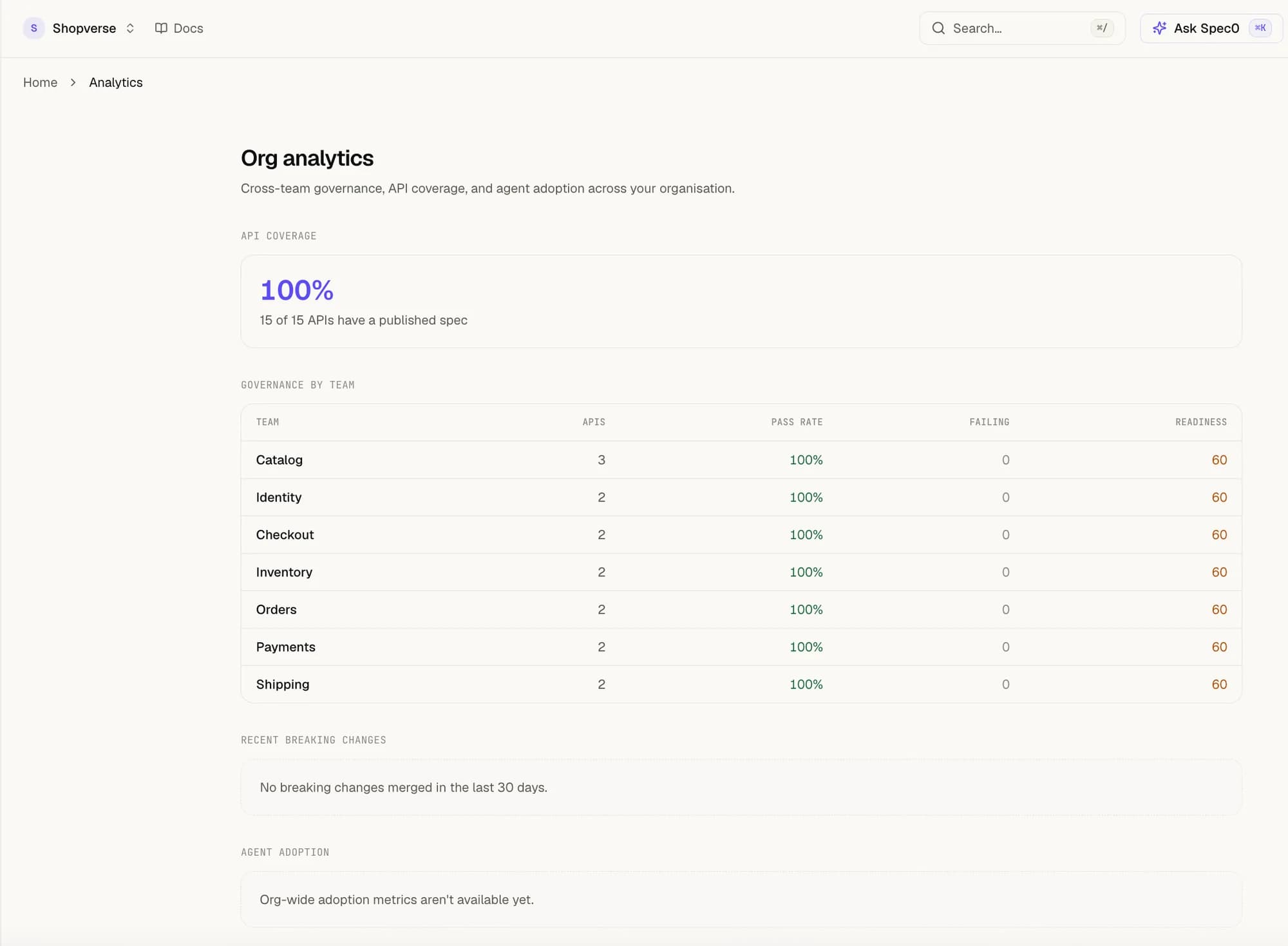
This view is org-scoped and needs the org:analytics role (or org admin/owner). Members without it don't see the entry.
Where to go next
- Getting started — install the CLI, push your first spec, connect an agent.
- Agents & MCP — wire the MCP server into Cursor, Claude, or VS Code.
- AI providers — bring your own key for AI search, reviews, and changelogs.
- Events — the same change data, delivered to your inbox.