

Hosted mock servers
Create a mock server on Spec0 for any API in your library, call it from anywhere, keep it current, and manage its key.
A hosted mock runs on Spec0, not on your computer, so anyone in your organisation with its address and key can call it: teammates, CI, a deployed preview. Hosted mocks need a Spec0 account. For a mock that's just for you, a local mock needs no account.
Create a hosted mock
Studio has one guided dialog, Create a mock server, that takes an API from your library to a running mock. Open it from any of these:
- Create mock in the bar of an open API
- Create mock on the API's card in the library
- Create a mock server in the Mocks tab, which then asks which API
- the end of an API's row in Add API → Spec0
If the API already has a hosted mock, the same places show Mock instead, and open it.
The dialog has four steps. A step that's already done is ticked, with the reason, and skipped.
Sign in to Spec0. Choose Use your spec0 CLI sign-in (if you've signed in with the CLI) or Sign in with a browser. See Signing in.
Choose a team. Pick the team that owns this API. You can move it to another team later in Spec0. Skipped if the API is already on Spec0, or if you belong to one team or none.
Publish to your organisation. A hosted mock is built from a spec on Spec0, so an API you added
from a file or a URL is published first. It's visible only inside your organisation. Choose the
API name (lower-case letters, digits and dashes) and the Version (taken from
info.version). If Spec0 finds breaking changes against a version already published under the same
number, the dialog says so. Skipped if the API is already on Spec0.
Create the mock. Spec0 builds the mock from the published spec, and gives it an address and a key.
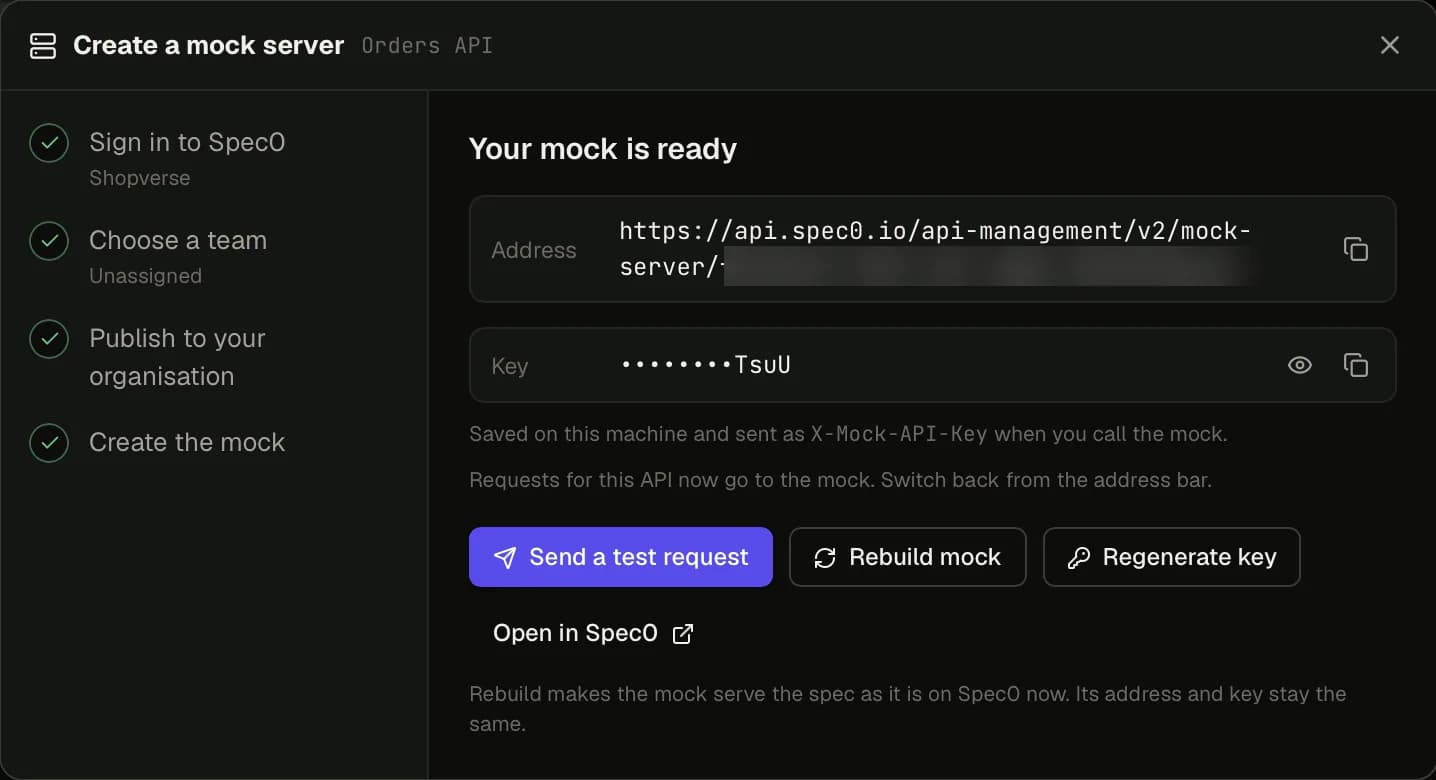
When it's ready, the dialog shows the address and the key (hidden until you show it), each with a copy button, and Send a test request, which opens one of the API's operations, points it at the mock and sends it.
From then on, Studio sends that API's requests to the mock. The address bar and History label them MOCK. To go back to a real server, pick it in the address bar.
The address and the key
Each hosted mock has its own address and its own key. The key goes in an X-Mock-API-Key header on
every request.
You don't need to copy the key into Studio. Studio gets it from Spec0, keeps it on your computer, and adds the header when you send a request to the mock. If Studio can't get the key (for example, because you're signed out), it asks you to paste it, and you can copy it from the mock's page in Spec0.
Treat the key like a password. Anyone with the address and the key can call the mock. If a key has been shared too widely, regenerate it.
Call it from anywhere
A hosted mock is an ordinary HTTPS address. Copy the address and the key from Studio, then:
MOCK_URL="<the mock's address, copied from Studio>"
MOCK_KEY="<the mock's key, copied from Studio>"

curl -s "$MOCK_URL/orders" -H "X-Mock-API-Key: $MOCK_KEY"
Replace /orders with a path from your spec.
What it answers with
For each response, a hosted mock looks, in order, for:
- examples on the response's media type (
exampleorexamples) - examples on the schema, then on each property
- defaults and enum values, for fields with no example
- generated values for anything left, based on the field's type and format
Rebuild
A hosted mock serves the spec as it was when the mock was created. If you publish a new version of the API, the mock keeps serving the old one until you rebuild it.
Rebuild mock makes the mock serve the spec as it is on Spec0 now. The address and the key stay the same, so nothing that calls the mock has to change.
When the mock is behind the spec you have open, Studio says so: the library card shows Mock is behind, with both versions, and the response pane mentions it, so the difference isn't mistaken for drift.
If you changed the spec on your computer, publish the new version first, then rebuild.
Regenerate the key
Regenerate key gives the mock a new key. Studio asks first, because the old key stops working straight away, for everyone. Studio saves the new key and keeps using it. The address doesn't change.
Limits
Your organisation's plan sets how many mock servers and APIs you can have.
- Before you create a mock or publish an API, the dialog shows how many your organisation is using, when Spec0 reports it.
- If a limit is already reached, the dialog says so before you start, and suggests removing a mock or API you no longer need.
- If a limit is reached part-way through, the dialog shows Spec0's message and a link to Spec0.
If something goes wrong
| What happened | What the dialog does |
|---|---|
| Your sign-in expired | Goes back to the sign-in step, then carries on. |
| You cancelled a browser sign-in | Says so. Nothing else has changed. |
| Spec0 can't be reached | Says so, and you can try again. |
From the MCP server
With Studio's local MCP server, a coding agent on your computer can get a hosted mock's address and key, create a mock for an API that's already published, or rebuild one. These tools need you to be signed in to Spec0 in Studio.