

Sending requests
Build a request from the spec, choose where it goes, work across request tabs, and find it again in History.
This page covers building and sending a request, the request tabs, and History. For auth and variables, see Auth, environments and secrets.
The request editor
Open an API, pick an operation in the Operations view, and the editor fills itself in from the spec:
- Parameters get the right kind of field. A list of allowed values becomes a dropdown, and a true/false becomes a toggle.
- Bodies start filled in with the real field names, and example values that fit each field's type and format. The spec's own examples are used where it has them.
- Responses declared at the bottom lists the status codes the spec describes.
Press Send or ⌘↵ (Ctrl+Enter).
Bodies and files
The editor follows the content type the spec declares:
| Content type | Editor |
|---|---|
| JSON and other text | A text body, filled in from the schema. |
application/x-www-form-urlencoded | Key and value rows. Repeated keys are kept, and the encoding is done for you. |
multipart/form-data | One row per part, named from the schema, each with a file picker. |
Files are read when you send, from the path you picked, so there's no upload size limit in Studio.
Responses that aren't text
Images show inline. Anything else binary, such as a PDF or a zip, shows its type and size, and Save as… writes the bytes that came back to a file. Binary bodies aren't kept in History; the entry records the size.
If a response says it's binary but is really readable text (servers often send JSON as
application/octet-stream), Studio shows it as text.
The address bar
The address bar shows the method, where the request goes, and the operation's path.
- Any base URL. The spec's
serversare suggestions. You can typelocalhost:8080, or any host the spec never mentions. A spec with noserversworks too. - The path isn't editable. It belongs to the operation.
- The target menu switches between the spec's servers, the environments Spec0 knows the API is deployed to, its hosted mock, its local mock when one is running, and Custom….
Nothing is chosen for you: a new API starts on the spec's first server. A request aimed at a mock is labelled MOCK or LOCAL MOCK in the address bar and in History, so you always know whether you just called a real server.
Some specs give their server as a path, such as /api/v3. For a spec added from a URL, Studio
resolves it against the spec's own address, as OpenAPI describes. A spec from a local file has
nothing to resolve against, so type the base URL yourself.
To keep an address you typed, the bookmark icon saves it as baseUrl in the active
environment.
No CORS
Requests are sent by the app itself, not by a web page, so browser CORS rules don't apply. There's no preflight and no proxy to set up.
Request tabs
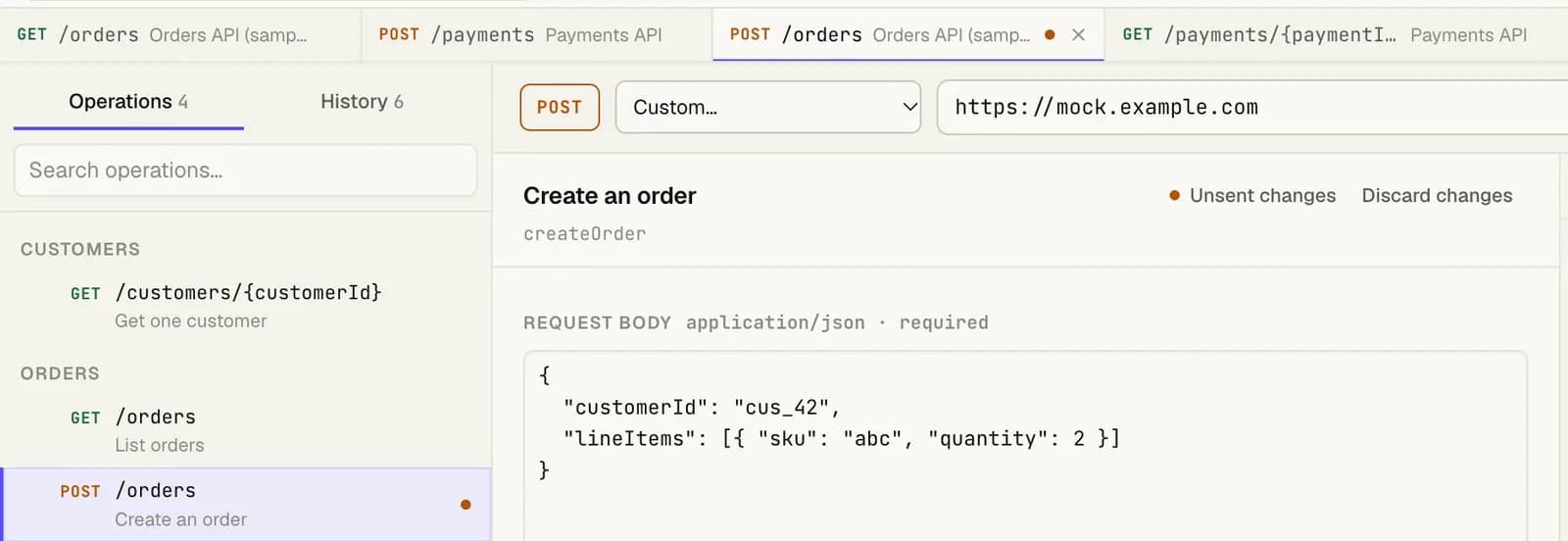
Every operation you open gets a tab under the API bar. Tabs work across APIs, so you can keep a request from the Orders API next to one from the Payments API and move between them.
| To | Do this |
|---|---|
| Open a tab | Open an operation: from the list, a schema's links, History's Copy to a new request, or an Open in Studio link |
| Close a tab | Its ×, a middle-click, or ⌘W (Ctrl+W) |
| Next or previous tab | Ctrl+Tab and Ctrl+Shift+Tab on every system; also ⇧⌘] and ⇧⌘[ on macOS |
Tabs come back when Studio reopens.
Good to know
- Studio keeps up to 20 tabs. Opening another closes the one you used longest ago, but never one with unsent changes.
- Tabs are for operations. A collection step is edited in its collection.
- On macOS,
⌘Wcloses the tab on screen. When no tab is on screen, it closes the window.⇧⌘Walways closes the window.
Unsent changes
What you type into a request stays with that operation when you move to another request, another API or another tab, and after a restart.
- A dot on the tab and next to the operation shows which requests have unsent changes.
- Discard changes goes back to the values the spec suggests.
- Once a request is sent, what you sent is what it opens with next time, and the dot goes away.
Auth values you type straight into a request are kept only until Studio quits. A {{reference}} to
an environment variable is kept. Secret values are never written into saved changes.
The last response comes back
Going back to a request you sent earlier in the same session shows its last response again, with a note: "Sent at 14:03:12, earlier in this session. Not sent again since." If you've edited the request since, the note says that response isn't the answer to what's on screen now.
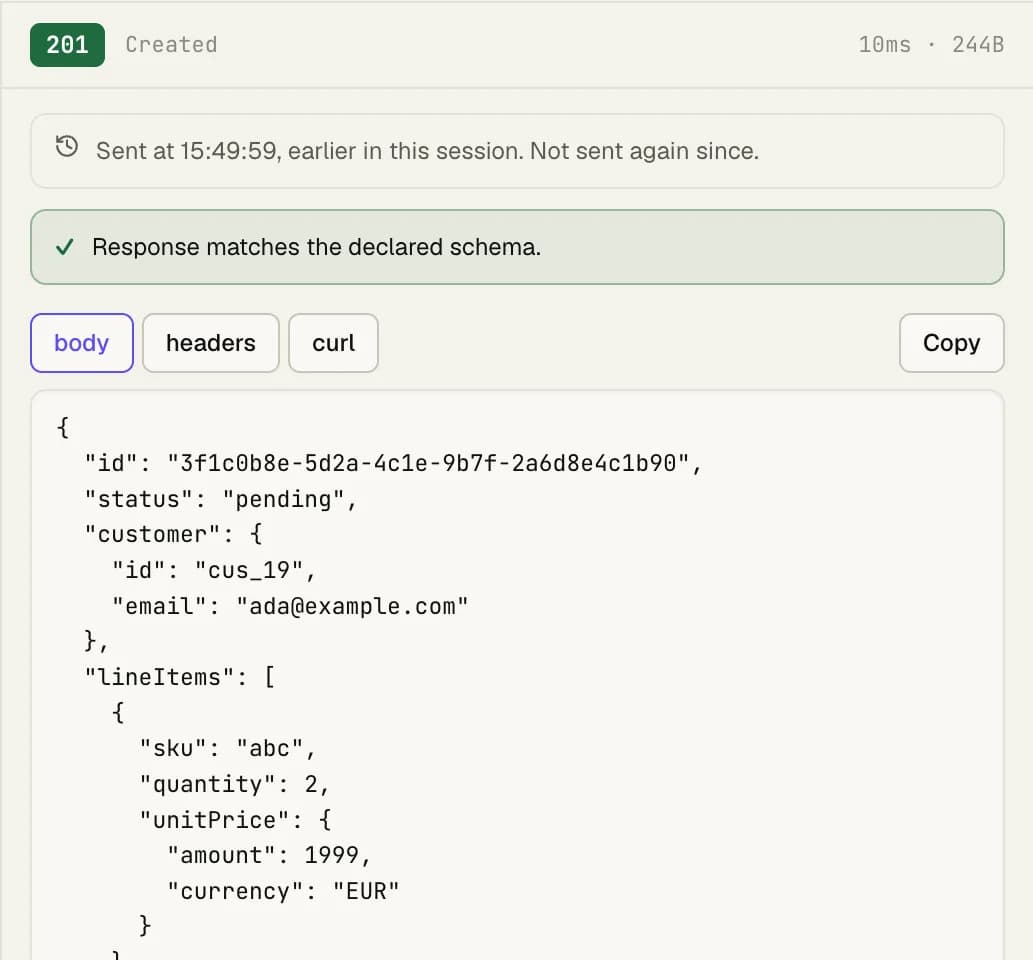
Responses are kept for this session only. After a restart, earlier responses are in History.
The scratch pad
Sometimes you just have a URL and want to send one request. Scratch, pinned first in your library, is for that: method, URL, headers, body, send. Environment variables work there too.
There's one pad, with no save and no second request. A request without a spec has nothing to check against, so the response pane says there's no check rather than leaving a blank. Scratch requests are kept in History like any other.
History
History is a read-only log of every request you've sent. It's kept on your computer for 30 days and never synced anywhere.
History in the top bar lists every API's requests, and scratch requests, in one list. Filter it by API, by status (2xx, 3xx, 4xx, 5xx or errors), by mock or real server, or to show only responses that drifted from the spec, and search it. For one API's requests, open the API and choose History in the sidebar.
Open an entry to see:
- what was sent: method, full URL, headers and body
- what came back: status, time, size, headers and body
- when it ran, which API and environment it used, and whether it went to a mock
- the schema check from when it ran. If the spec has changed since, Re-check against current spec shows what the check says now.
A recording has no Send button, so it always shows what happened. To run it again, choose Copy to a new request, which fills the editor from the recording. Add to a collection adds it as a collection step, with the values it was sent with.
To delete everything, use Clear history in Settings → Data & privacy. Secret values are never written into History.