

Specs and the library
Add APIs to Studio from a file, a URL or Spec0, open Swagger 2.0 specs, and move between the APIs you work with.
Your library is the set of APIs you work with in Studio. This page covers adding APIs to it and moving between them.
Adding an API
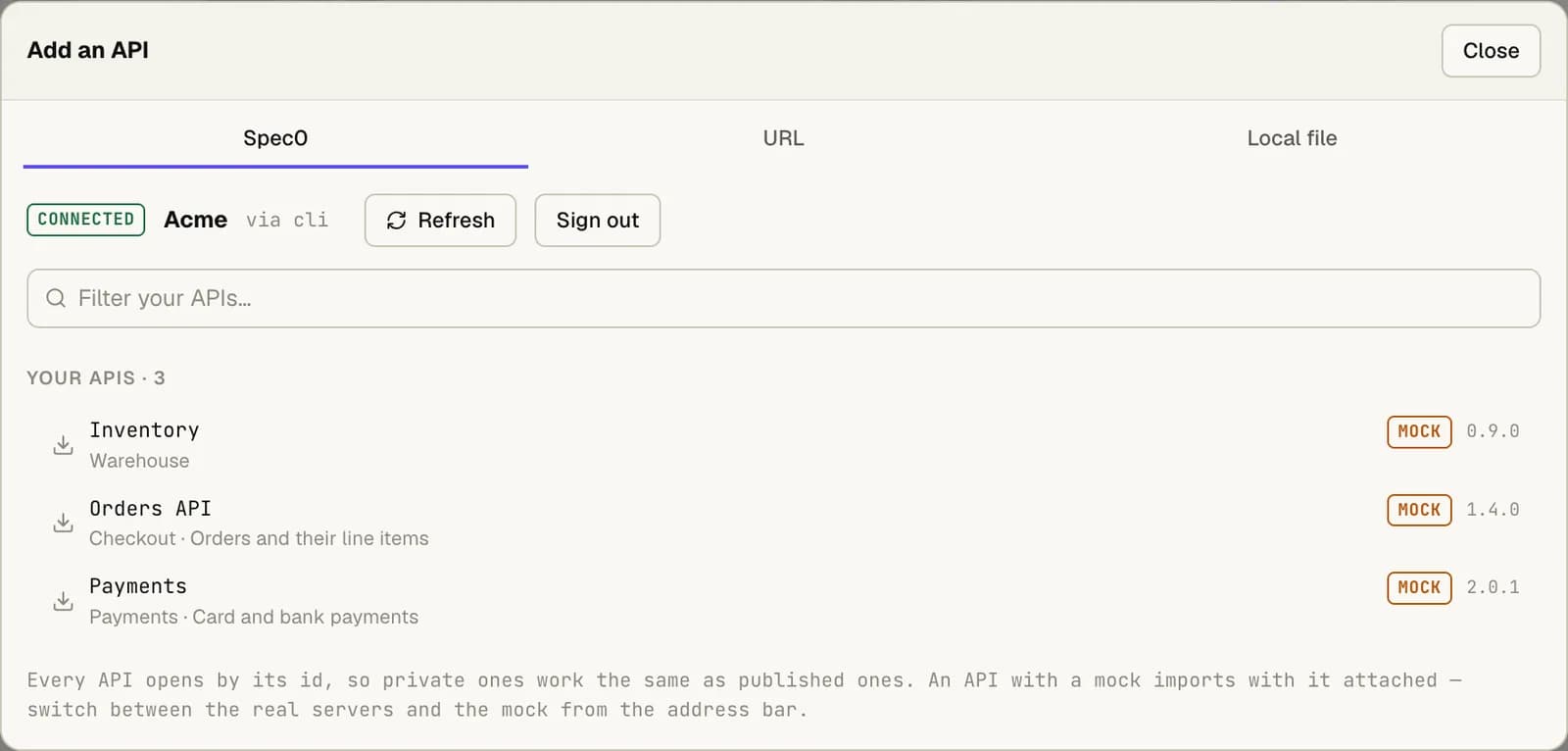
Press ⌘O (Ctrl+O), choose Add API, or drop a spec file on the window. The Add an API
dialog has three tabs:
| Tab | What it adds |
|---|---|
| Spec0 | An API from your organisation's catalog. Needs you to be signed in. |
| URL | A spec from a web address. |
| Local file | A YAML or JSON file on your computer. |
The dialog opens on Spec0 when you're signed in, and on Local file when you're not. From the Spec0 tab, if you're signed out, Sign in to Spec0… opens a dialog with just the sign-in choices.
Studio reads OpenAPI 3.0 and 3.1, in YAML or JSON, and Swagger 2.0.
What Studio keeps
Studio keeps a copy of the spec's text, not a link to the file. So an API you've added:
- opens straight away, with no network
- still works if the file moves or the server that hosted it goes away
- keeps its own settings: the base URL, the active environment, the last operation, and the sidebar tab you were on
Because Studio works from its copy, editing the file doesn't change the API in Studio straight away. To pick up your edits, press the Refresh button on the API's card in the library ("Re-read from source"). It works the same way for a spec from a URL. For an API from Spec0, see Keeping specs current.
References to other files (a $ref to ./schemas/order.yaml, say) aren't followed. A spec split
across files needs bundling into one file first.
Moving between APIs
| Keys | Action |
|---|---|
⌘P | Switch to another API |
⌘L | Back to the library |
Requests you've opened stay in the request tabs strip across APIs, so you can also move between APIs by tab.
Each API's card in the library has buttons for its mocks, Refresh, Rename and Remove from library. Removing an API also closes its request tabs and drops its unsent changes.
Swagger 2.0 specs
Studio opens Swagger 2.0 specs, in JSON or YAML, by converting them to OpenAPI 3.0 when you open them. The conversion runs on your computer and makes no network requests.
- Raw shows the original. The Document view's Raw tab shows the file as you added it. Everything else uses the converted spec.
- It says so. The API bar shows "Converted from Swagger 2.0 when opened".
- Known gaps are listed. Studio says where the conversion may not be exact. For example, a
tsvor other non-comma list format has no OpenAPI 3 equivalent. - Publishing uses the conversion. If you publish a converted API to Spec0, the OpenAPI 3.0 version is published.
Older formats, such as Swagger 1.2, don't open, and the error says why.
Open in Studio links
APIs on Spec0's public registry have an Open in Studio button. It opens the API in Studio without copying any addresses. If Studio isn't installed, the page offers the download, and the spec's address.
The button uses a link that starts with spec0://open. Any web page can send one of those, so
Studio always asks first. It shows the API's name, the host the spec would be downloaded from (in
the largest text), and the full address.
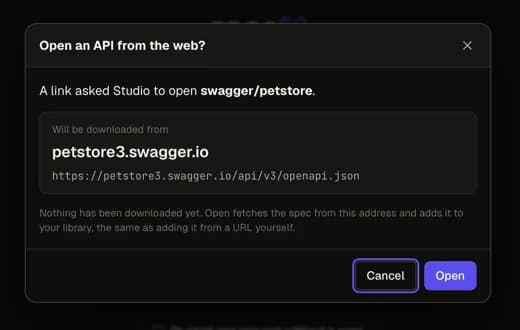
Open adds the API from its URL, the same as the URL tab. If that exact address is already in your library, Open shows the saved copy.
Good to know
Studio only accepts https addresses on public hosts. It refuses http and file addresses,
hosts on your own computer or a private network, and addresses with a password in them.